Tends to sum up how everyone went from Jr. to Sr.

To further the analogy, how the Sr. left/retired.

Tends to sum up how everyone went from Jr. to Sr.
To further the analogy, how the Sr. left/retired.
The short-short version, thankfully:
⌘+⬆+.
Command + Shift + Period
You’re welcome.
Shows hidden files. Then the same thing to hide them again.
Only throwing it out here because I keep forgetting.
One of the questions might be: why do I have hidden files all over? Well, we know that they’re there, but extremely rarely need them to contribute to the visual clutter that inhibits the usability of the interface itself.
In some cases, certain things are important for your own local account to function properly. So, we simply hide them from view. The difference between Unix and Windows is that in Unix, it was decided long ago that you could simply hide an object by starting its name with a period.
In Windows? If I recall, it was a matter of going to the file’s Properties dialog, then ticking Hide. Oh, and then clicking OK.
Some real-world examples that you probably have on your own system now are things like .bashrc, .bash_profile (or .zprofile in the current age), maybe a directory called .ssh. There’s might also be a .Trash folder, which, as the name may suggest, is part of your user account’s Trash (wastebasket, Trash can, Recycle Bin, etc).
There could certainly be many, many more.
In several cases, mucking about with them can have unexpected consequences. So, leave them be unless you clearly understand what you’re doing — and have a back-up plan for when the unexpected occurs.
Presently, I need to go tweak a few configurations and would rather have visibility to them through the Finder instead of typing things into the Terminal.
It’s far-easier with three-key trigram shortcut than it used to be!
In previous versions of OS X, it could have been as “simple” as digging into the View Options pane of Finder (not Preferences!) then enabling the Show Hidden Files selector.
Or even much worse: pasting some guru-level commands into the terminal window:
defaults write com.apple.finder AppleShowAllFiles TRUE
Then updating the running Finder process:
killall Finder
And an equally-complex process to disable it:
defaults write com.apple.finder AppleShowAllFiles FALSE
And don’t forget to restart Finder:
killall Finder
Dark times, they were.
God, I miss the screaming.
If you’re wishing to access a Mac file share from a Windows machine, there’s one thing needed that’s often overlooked.
First, assume you’re just needing to have Windows machines access a file share presented from the Mac.
Creating the share — you can use any folder you wish, or even a drive. I’ll just use an existing folder to share with a Windows machine — and because I lack the “creative naming” gene, I’ll just call it WinBackups and put it on one of my Data drives.

Next, we’ll go to Sharing in System Preferences to add it as a File Sharing object. Here, you can see that I have one for Backups, a default public Drop Box for my own account, and the new…
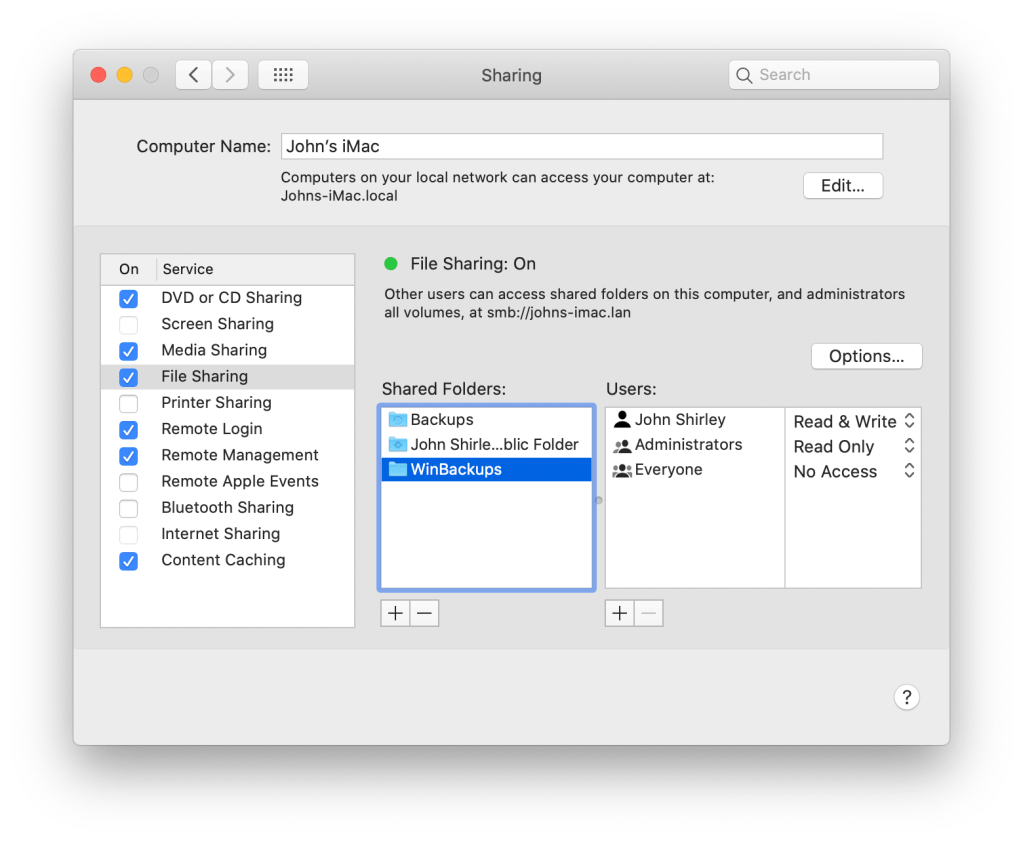
I’ve set it to No Access for everyone, and because I’m going to use my own account, added it for Read & Write access.
Next, ensure it’s presented as a Windows share. Right-click the share name then click Advanced Options. Because I need to exist in a platform-agnostic world, ensure Share over is SMB and AFP. Everything else can be left unchecked.

Click OK.
And try from Windows…
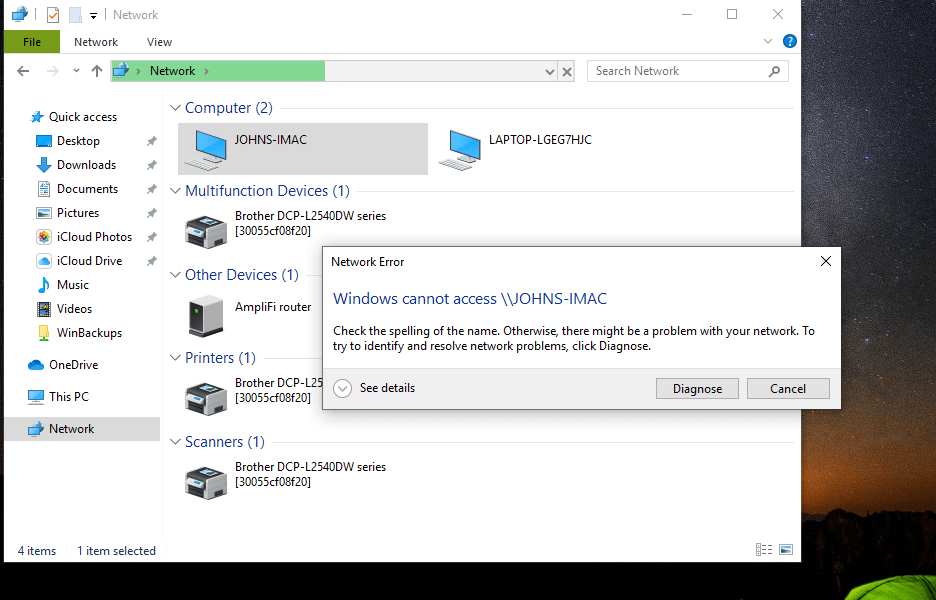
That’s annoying.
But not to worry!
There’s another step — strangely — because some Windows computers handle the password exchange differently. So, in a way, Mac passwords and password handling is too secure (?), or something.
In System Preferences, go to Sharing > File Sharing > select the specific share point, then click Options.
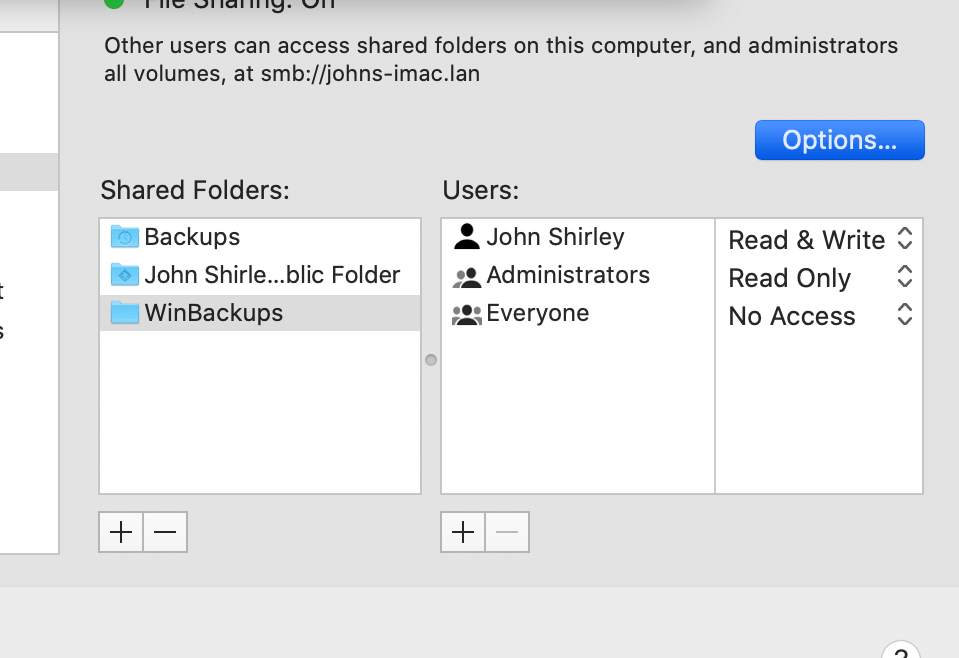
Enable the checkbox to Share files and folders using SMB. Next, check off each username from the list presented. You’ll need to type each user’s password when prompted.

Click Done.
And, viewing it from DOS, because why not:
C:\Users\esthe>net view
Server Name            Remark

\\JOHNS-IMAC           John's iMac
\\LAPTOP-LGEG7HJC
The command completed successfully.

C:\Users\esthe>net view \\johns-imac
Shared resources at \\johns-imac

Share name                    Type  Used as  Comment

Backups                       Disk
John Shirley's Public Folder  Disk
WinBackups                    Disk
The command completed successfully.

C:\Users\esthe>net use u: \johns-imac\winbackups
The command completed successfully.

C:\Users\esthe>dir u:
 Volume in drive U is Data
 Volume Serial Number is 0000-0000

 Directory of U:\

03/07/2020  03:02 PM    <DIR>            .
03/07/2020  03:02 PM    <DIR>            ..
02/24/2020  07:36 PM     1,646,760,758 Microsoft_Office_16.34.20020900_BusinessPro_Installer.pkg
03/07/2020  03:01 PM    <DIR>            SCC
03/07/2020  03:02 PM    <DIR>            SFCC
               1 File(s) 1,646,760,758 bytes
               4 Dir(s) 1,637,838,020,608 bytes free

C:\Users\esthe>shutdown /s /f /t 0
⌨️
After an absolutely abysmal effort at an assessment of an older skill, it occurs to me that either I was over-interpreting the questions or that it’s definitely time to clear out the proverbial skills fridge and delete the much older skills from it.
Nah, I’m not going to delete bash from the Skills list. In retrospect, I’m quite certain that I was overanalyzing it.
Also, bash isn’t dead yet and there aren’t many left who can use it.
So, the most recent Apple update was installed on my desktop. So far so good…
And I had to enter my iCloud password… fine…
And again…
And again…
And again…

Hmm… Apple, we really really need to get this sorted out or at least provide some sort of indicator about what’s having trouble.
And, no, it’s not because I’ve forgotten the password. I’m quite certain what it is.
—
Update: Sign Out on the desktop. Sign back in. It looks like it’s successful.
 the rest of me